Black UI guide
Last updated 24 October 2026 · how the dashboard works, step by step: HTML to APK, text to APK, App Store screenshots, pricing and limits.
1. What Black UI does
Black UI is a dashboard where you chat with AI and turn what it builds into a real Android app. It is designed for small apps written in HTML, CSS and JavaScript. There are two ways to get an installable APK (to install on a phone) and AAB (the bundle format Google Play asks for):
- Text to APK — describe the app you want. The AI writes it as an HTML app and runs it live in the chat so you can try it before building.
- HTML to APK — you already have an HTML file, from another AI or written yourself. Attach it and ask for an APK.
Either way the build ends the same: a signed APK and AAB produced on your own GitHub account, with a keystore password that never leaves your device. You do not need Android Studio or the Android SDK. Around that sit a few related tools: App Store screenshots, pointing at a button on a screenshot, and voice-overs, music and file tools.
Demo: from a prompt for a calculator app to an APK installed on a phone.
What it does not do
- It does not build native Kotlin or Java projects; it packages web apps (HTML/CSS/JavaScript) as Android apps.
- Apps built this way do not include in-app purchases at the moment.
- It does not upload your app to Google Play or any other store. You download the files and publish them yourself.
2. Signing in with Google
Open the dashboard
The first time you open Black UI you'll see a sign-in screen.
Continue with Google
Choose your Google account. Google shares only your name, email address and profile picture with us — nothing else from your account.
You get your own space
Your account gets a unique ID, so your chats and usage limits are yours alone. To leave, use the sign-out button in the sidebar. To delete your account data, see the Privacy Policy.
3. Chatting & auto-switching
Start typing
Once you're signed in, every message goes to Gemini by default — no setup or key needed.
Ask a coding question
If auto-switch is on and you've added a Claude key, messages that look like real coding or debugging work (error text, "fix this bug", code blocks) are automatically routed to Claude instead.
Or pick a model manually
Turn auto-switch off in Settings to pin every conversation to one provider.
4. Adding your own keys
Chatting with Gemini needs no key. For the extra features, open Settings and add:
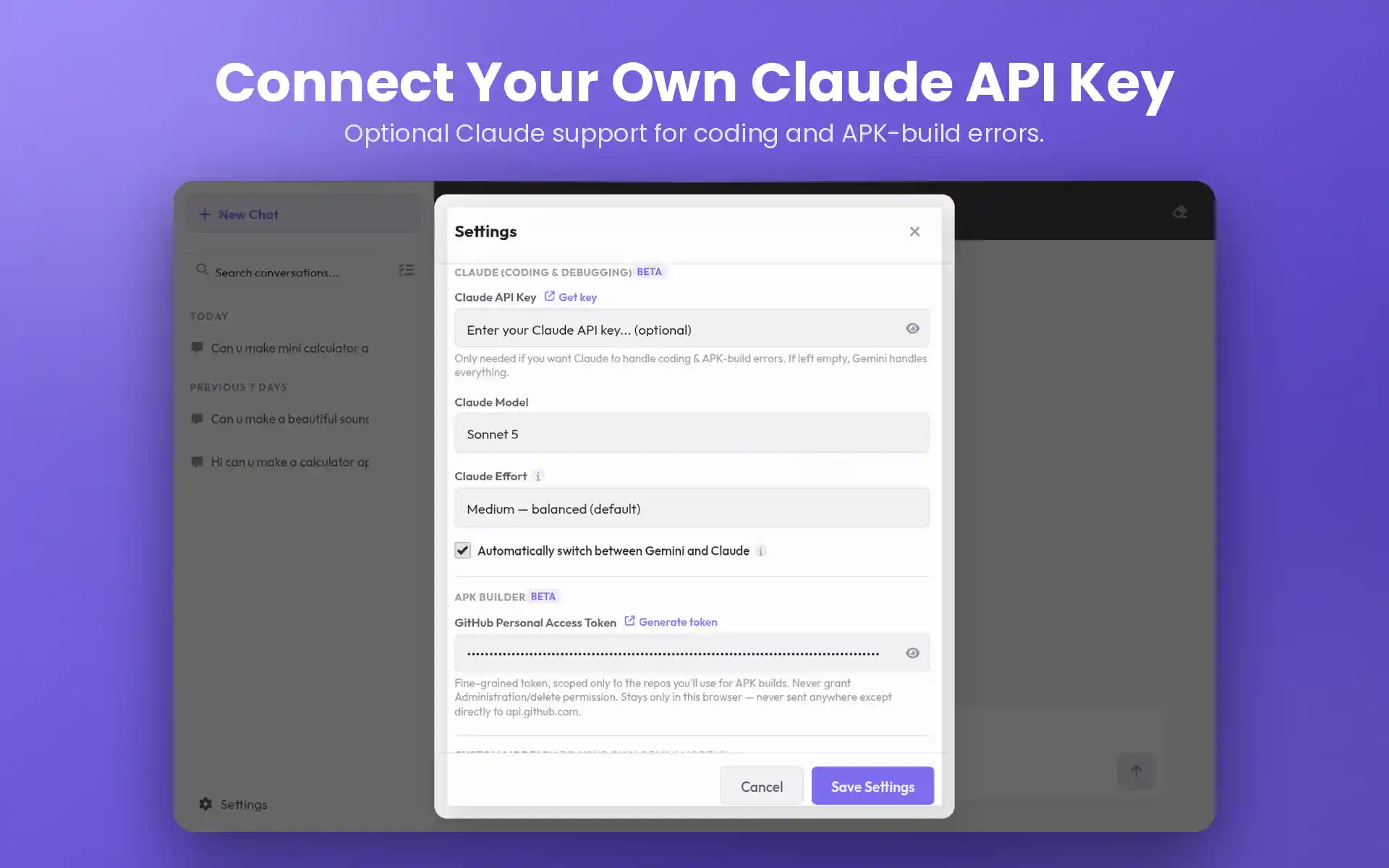
- Claude API key — for coding & debugging with Claude.
- GitHub token — for the APK/AAB builder.
Keys are stored locally on your device only and are sent directly to Anthropic or GitHub — never to our servers. If you clear your browser or app data, you'll need to add them again.
How to get your GitHub token
- Create a free GitHub account first if you don’t have one.
- In Black UI, open Settings and find the GitHub token field. Just above it is a Get your GitHub key link.
- That link opens GitHub’s token page with the permissions Black UI needs already selected. Generate the token, copy it, and paste it into the field.
5. Debugging an attached file
Attach a code file, screenshot of an error, or paste a stack trace directly into the chat. Once Claude is active, it reads the attachment, explains the bug, and can hand back a corrected file with a download link right in the conversation.
6. Text to APK: build an app by describing it
Describe the app
Tell the AI what you want: what the app does, the screens, colours and any rules. A calculator, a quiz, a habit tracker, a small game are all typical examples.
Try it live in the chat
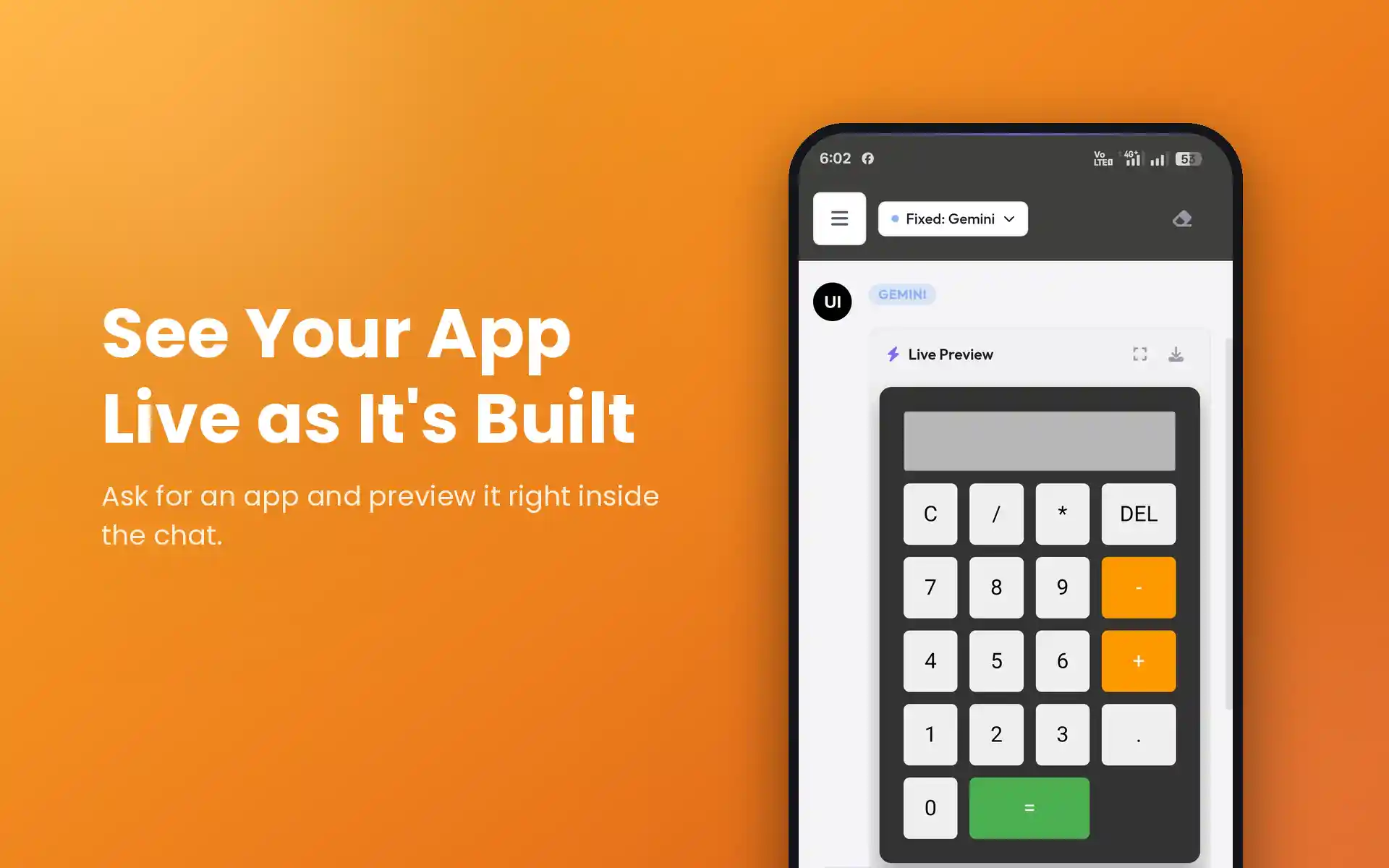
The AI writes the app as an HTML file and runs it in a preview frame inside the conversation. Tap the preview to open it full screen and use it like a real app.
Ask for changes
Say what to change in plain words (“make the buttons bigger”, “add a dark theme”) and the preview updates.
Ask for the APK
When you like it, say “build this as an APK”. The AI adds a Start APK Build button to the chat. Continue with the build steps.
7. HTML to APK: turn a file you already have into an app
If you already have an HTML app, you do not need the AI to write it again.
Attach your HTML file
Attach the file in the chat. It can come from another AI tool or from your own work.
Ask for an APK
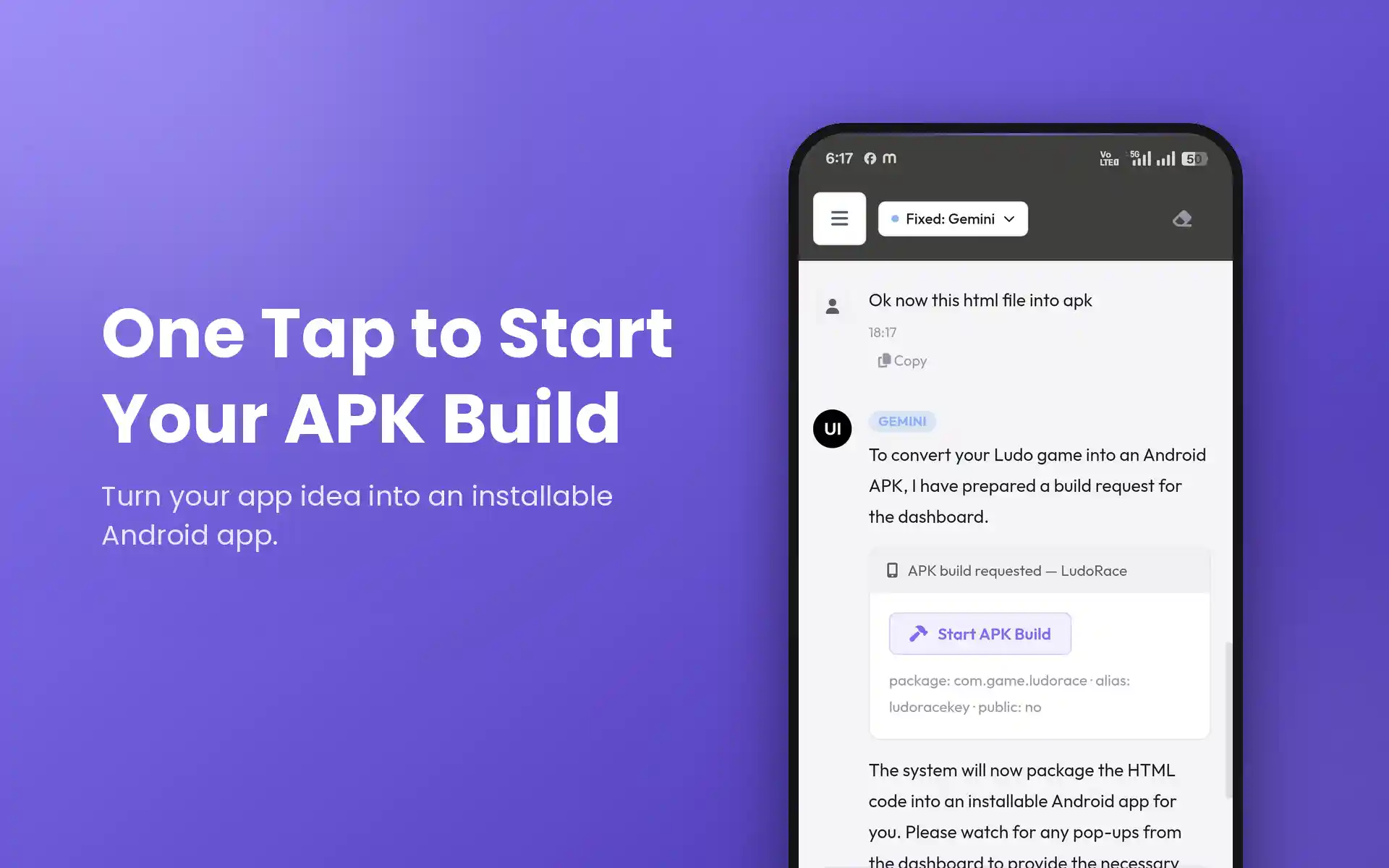
Tell the AI to build the file as an APK. It shows the same Start APK Build button, and from there the steps are identical to Text to APK.
8. The build, step by step
This is the same flow for both routes. A build costs 2 tickets (see pricing).
Tap Start APK Build
The button appears in the chat, along with the app’s package name.
Choose your app logo
Pick the image that becomes the app icon.
Set your keystore key and password
Enter a key and a password, then enter the password a second time to confirm. A .keystore backup file is saved to your device. Keep it safe: you need the same file and password for every future update of this app. Details are in your keystore password.
The build runs on your GitHub
A GitHub token is required, because the build runs in your own GitHub account using your own Actions minutes. Black UI does not provide a key for this. See how to get your GitHub token.
Download your APK and AAB
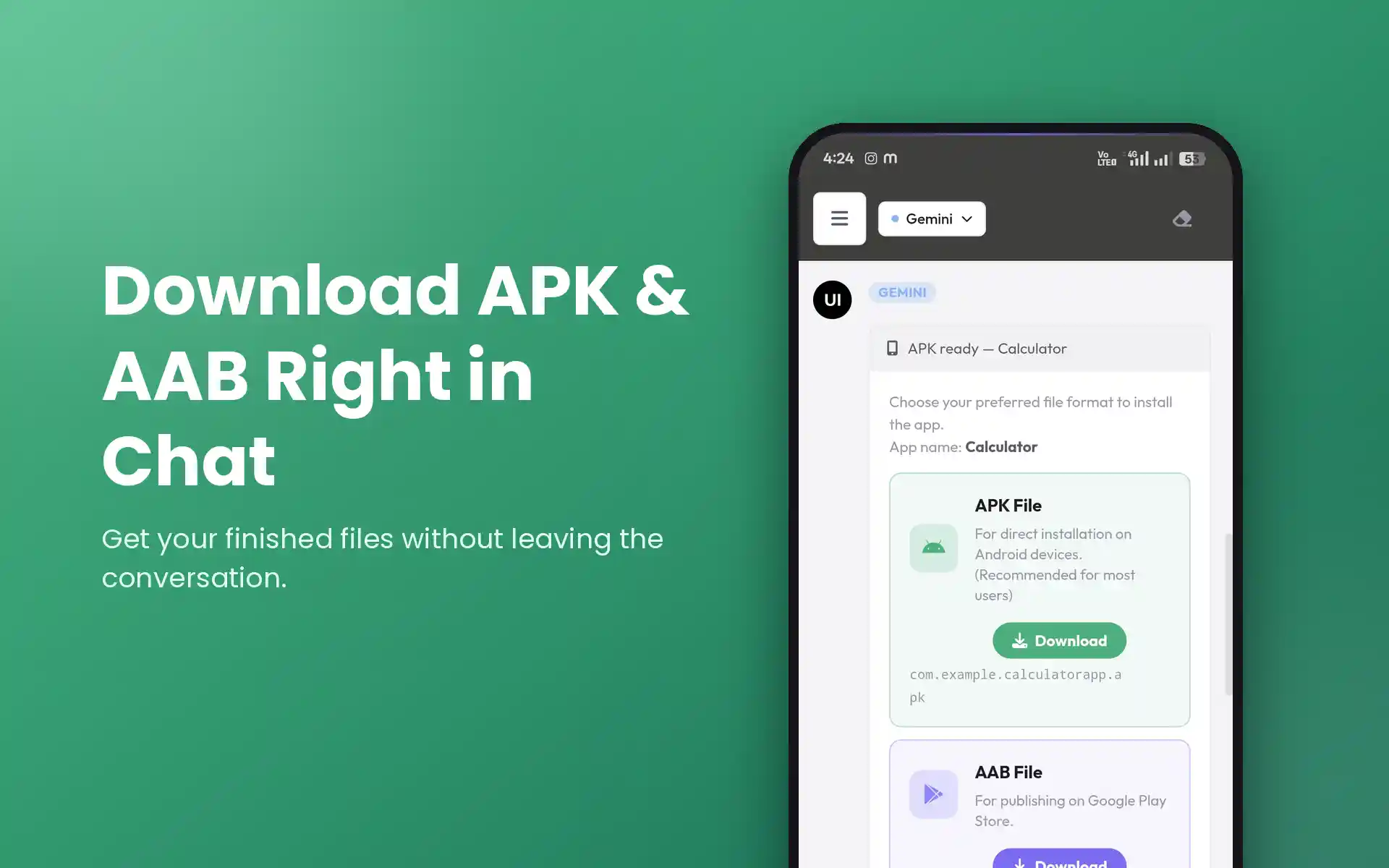
Both files appear in the chat, together with the package name and key alias. Install the APK on a phone to test it, and keep the AAB if you plan to publish to Google Play.
9. The APK/AAB builder & its base template
When you ask the dashboard to build an Android app, it doesn't compile anything on our servers. It pushes your generated project to your own GitHub repository and triggers a build through your own GitHub Actions minutes, using a base Android scaffold we maintain and publish openly here:
github.com/thoibatrader-ship-it/apk-template — the exact base template every APK/AAB build starts from.
Why this matters
The template handles Gradle configuration, keystore signing and the GitHub Actions workflow that turns your code into an installable app. It is a shared, versioned starting point — not something regenerated from scratch per user — so:
- Any build issue that traces back to the template itself is a template-level issue, visible in your own GitHub Actions log for that run, not something hidden inside the dashboard.
- You always have direct access to the raw build output and logs in your own repository — nothing is obscured.
- This template is actively maintained; if you hit a genuine bug in it, report it (see Contact) rather than assuming it's unfixable.
Full terms for this feature are in Terms of Service — APK/AAB Builder.
10. Your keystore signing password stays yours
When you build an APK/AAB, you set a password that signs the app. That password is encrypted on your own device before it ever leaves your browser:
- It is never sent to, or stored on, our servers.
- No AI model — not Gemini, not Claude, not Groq — ever sees it.
- It is used only inside your own GitHub Actions run, to sign the app in your own repository.
Because we never see this password, we also can't recover it for you. Save your .keystore file and password somewhere safe — you'll need the same pair for every future update to the same app.
11. App Store screenshots
Store listings need clean, well-framed screenshots. After an APK build, Black UI can make them for you in two ways.
Option A: capture them automatically
Tap Start Capture
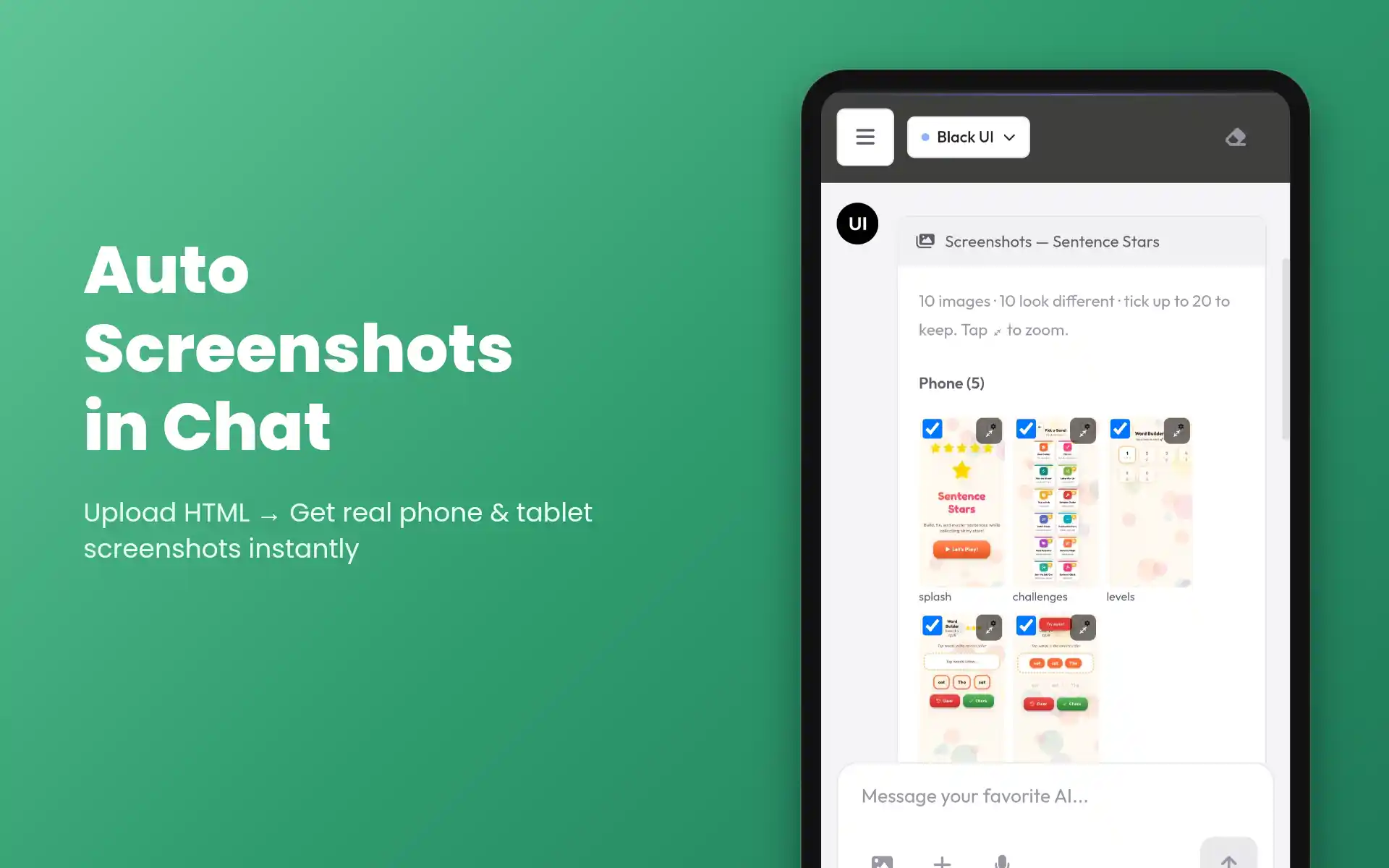
The button appears under a finished build. The AI reads your HTML app and decides which screens are worth capturing.
Screens are captured on your GitHub
Your HTML file is sent to your own GitHub account, where the screens the AI chose are opened and captured. The raw screenshots come back to the dashboard. This step costs 1 ticket and gives up to 20 screenshots per run.
The AI designs them
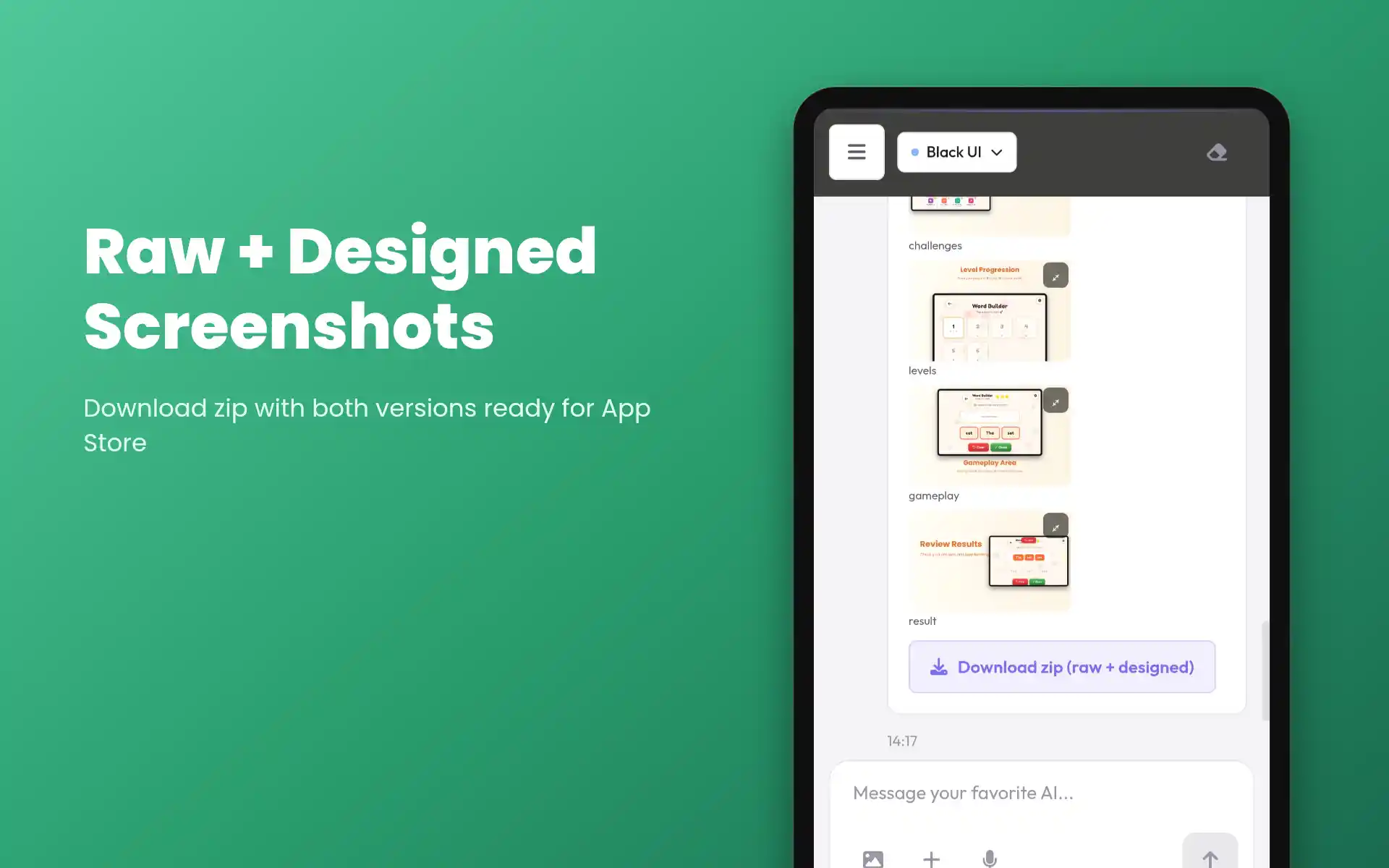
Each raw screenshot is placed on a canvas with a matching background colour, a short tag and a subtitle, so it looks like a store screenshot instead of a bare capture. This step happens in your browser and costs no tickets.
Option B: bring your own screenshots
Open your app yourself, take screenshots, attach them to the chat and ask the AI to make them ready for a store listing. The designing happens in your browser, so this route costs no tickets.
You can download the raw and the designed versions together as one zip. Store size and count requirements differ between stores and change over time, so check the current rules of the store you publish to.
12. Point to the button on any screenshot
Describing where to click (“bottom right, under the third icon”) fails on crowded pages such as government portals or large dashboards. Black UI does it visually instead.
- Take a screenshot of the page you are stuck on.
- Attach it to the chat and ask, for example, “where do I click to download the certificate?” or “where is the Submit button?”
- The AI returns your own screenshot with a circle drawn around the button, field or icon.
This is best-effort, so double-check before submitting forms or making payments. The screenshot is sent to an AI model, so hide OTPs, passwords and ID numbers before you attach it.
13. Voice-overs, music and file tools
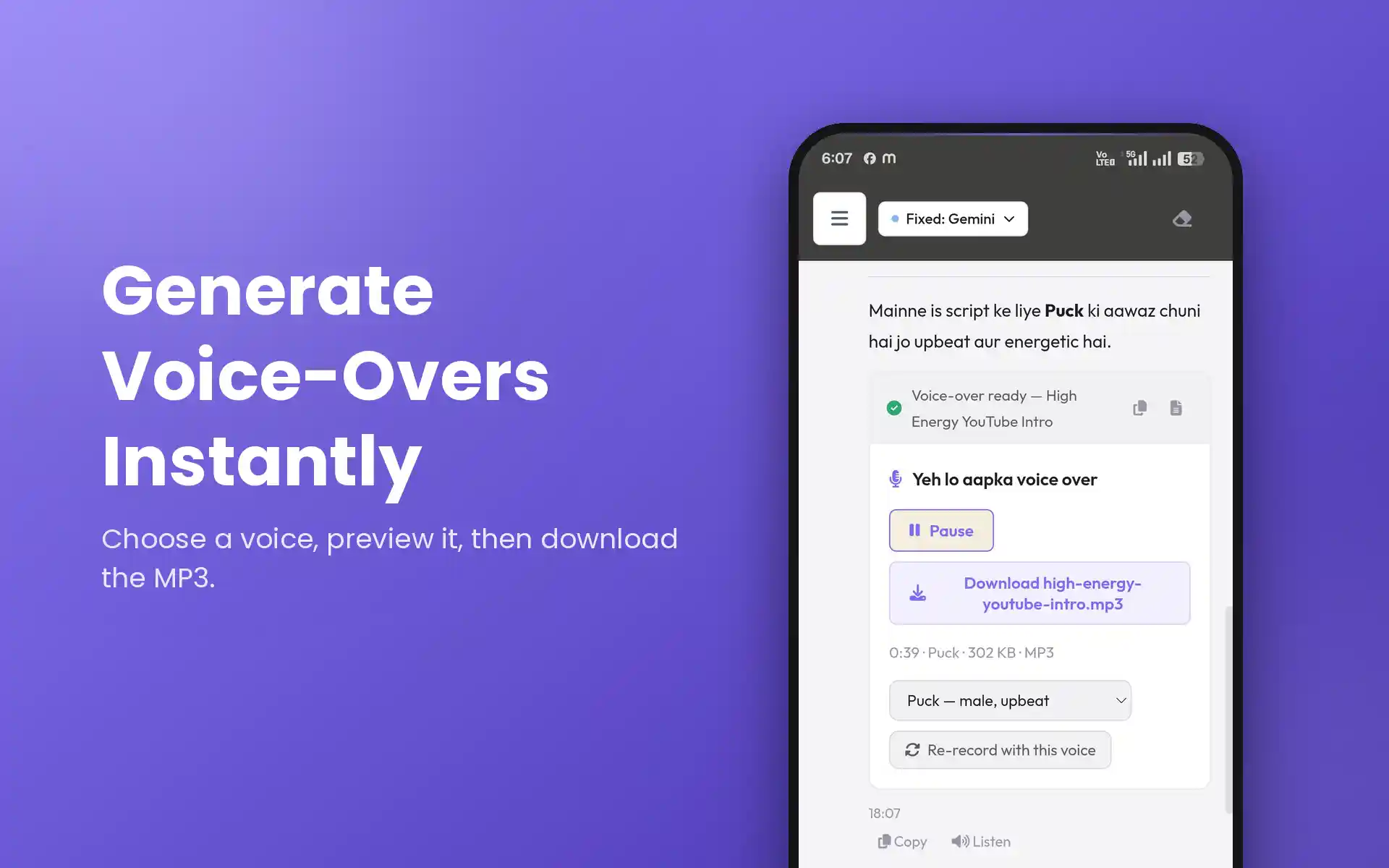
- Voice-overs. The AI writes the script and records it with Google text-to-speech in a male or female voice, tone and style of your choice. Up to about 3 minutes, returned as a playable, downloadable MP3.
- Music and sound. Synthesized instrumentals, beats, jingles, ringtones and sound effects, returned as an MP3. They are generated by code, so there are no sung vocals and it is not a studio recording.
- Mixing audio. Merge, trim or loop several audio files into one MP3, for example background music under a voice-over.
- File tools. Convert, resize, compress, merge, split, watermark or extract content from images, PDFs, Word, Excel and CSV files, zips and audio. The result comes back as a download link in the chat.
- Photo editor. Crop, resize, rotate, flip, adjust brightness, contrast and saturation, and add text or logos to an attached photo.
14. Coins, tickets and pricing
Black UI uses two things, and they pay for different work:
- Coins pay for AI chat. Short messages cost a few coins; long answers and big files cost more.
- Tickets pay for the GitHub-based jobs: an APK build costs 2 tickets and a screenshot capture costs 1 ticket. Designing screenshots in your browser costs no tickets.
Every new account gets a one-time grant of free coins and tickets (the amounts are shown in the app). You can top up any time in the Shop. A purchase that includes coins moves your account to a paid plan with access to additional models; ticket-only packs do not.
| Pack | Coins | Tickets | Price (INR) |
|---|---|---|---|
| Starter Combo | 1,000 | 2 | ₹39 |
| Pro Builder Combo | 3,500 | 6 | ₹129 |
| Ultimate Agency Pack | 12,000 | 20 | ₹399 |
| Coins: Starter | 1,000 | – | ₹29 |
| Coins: Pro Builder | 3,500 | – | ₹99 |
| Coins: Ultimate | 12,000 | – | ₹299 |
| 2 Tickets | – | 2 | ₹19 |
| 6 Tickets | – | 6 | ₹49 |
| 20 Tickets | – | 20 | ₹149 |
Prices match the in-app Shop at the time of writing. The Shop always shows the current price. Your own Claude API usage is billed to you by Anthropic, and GitHub Actions minutes are between you and GitHub; neither is included in these packs.
15. GitHub's own build limits apply
Every APK/AAB build runs on your own GitHub account, using your own GitHub Actions minutes. GitHub enforces its own usage limits on those minutes (for example, the free tier's monthly Actions minutes) — limits we don't set and can't override from our side.
If you've already purchased Black UI build tickets but your GitHub account hits GitHub's own limit, the build can't proceed until GitHub resets it (typically at the start of your next billing cycle) or you upgrade your GitHub plan. A Black UI ticket pays for our dashboard's build orchestration — it doesn't purchase or extend GitHub's infrastructure, which stays entirely between you and GitHub.
16. India-only, for now
Black UI currently runs on Google's free Gemini API quota for free-plan users and on Razorpay (INR) for payments, so the service is offered in India only at the moment. We plan to support more countries and currencies as the product grows — thanks for bearing with us.
17. Billing state, GST invoices & downloads
Every purchase comes with a GST invoice. To make that possible, the Shop asks for one thing before you pay: your billing state.
- Open the Shop and choose your state in the Billing details box, then tap Save. You do this only once — it is remembered on your account. If you tap Buy without it, we ask for it before the payment window opens.
- Need a business (B2B) invoice to claim input tax credit? Tick “I need a GST invoice with my business details” and fill in your business name, GSTIN and address; your state is picked from your GSTIN. Leave it unticked for a normal personal invoice, which stores only your state.
- Tap Edit any time to change your state or business details. Changes apply to your next purchase — invoices already issued don't change, and a personal invoice can't be turned into a business one afterwards.
- After paying, tap Download GST invoice, or open Shop → Invoices at any time to View an invoice or save it as a PDF.
On the Android app, if your phone can't save the PDF, tap View to see the full invoice on screen. The website always lets you download the PDF. See the Privacy Policy for exactly what we store.
18. Common questions
How do I convert an HTML file to an APK?
Attach the HTML file in the Black UI chat and ask for an APK. Tap Start APK Build, choose a logo, set a keystore key and password, and the signed APK and AAB are built on your own GitHub account. It takes 2 tickets. See the build steps.
Can I make an Android app just by describing it?
Yes. Describe the app, try the live preview in the chat, then ask for an APK. See Text to APK.
Do I need Android Studio?
No. The build runs on GitHub Actions in your own GitHub account, so you do not install Android Studio or the Android SDK. You do need a free GitHub account and a GitHub token.
Can I publish the result to Google Play?
You get a signed APK and an AAB. The AAB is the format Google Play asks for, but you upload and publish it yourself and the store’s own review rules apply to you.
Does Black UI make App Store screenshots?
Yes, either by capturing screens from your HTML app or by styling screenshots you provide. See App Store screenshots.